
Connect Cursor
Add Wexa to Cursor’s MCP servers and the agent gains access to your Fabric context tools.
First, get your MCP credentials: your MCP Server URL,
workspace ID (ws_<your_project>), and an API key (fab_sk_…).
- Open Cursor → Settings → MCP → Add new server.
- Paste the configuration below into
~/.cursor/mcp.jsonand drop in your API key and workspace ID. - Reload — Wexa context tools are now available to the agent.
{ "mcpServers": { "wexa-context": { "url": "https://mcp.wexa.ai/v1/sse", "headers": { "Authorization": "Bearer <YOUR_API_KEY>", "X-Wexa-Workspace": "ws_<your_project>" } } }}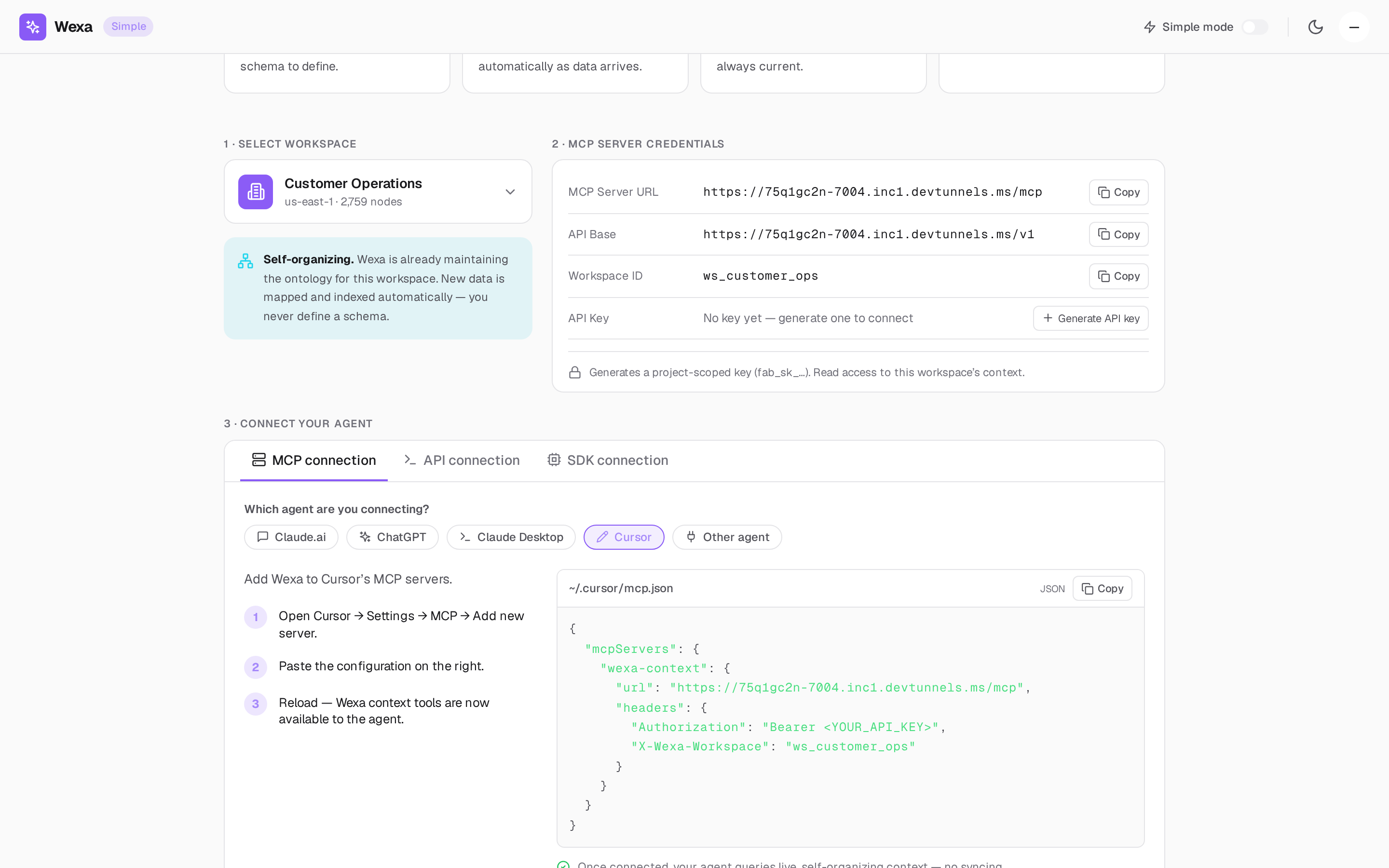
Verify the connection
Section titled “Verify the connection”In Cursor’s chat, ask a question grounded in your data. The agent calls Fabric’s
query-context tool and answers from your context graph — scope-pinned and audited.
Troubleshooting
Section titled “Troubleshooting”- Tools don’t appear — reload Cursor after editing
mcp.json, and validate the JSON. - 401 / unauthorized — check the API key and the
Bearerprefix. - 403 / wrong scope — the
X-Wexa-Workspacevalue must match a project your key can access.