
Run an agent & approvals
Once an agent exists, you run it by giving it a goal and watching it execute. High-risk actions pause for your approval before they touch a production system. This page walks the full run → execute → approve → result loop.
Start a run
Section titled “Start a run”- From an agent (or a process flow), click Run. A dialog titled “Run {name}” opens.
- Provide the input:
- For a free-form goal, type into the Goal * field — for example “Summarize this week’s churn-risk accounts and draft outreach.”
- For a structured flow, fill the dynamic form fields shown (text, file upload, etc.).
- Click Run Flow.
Fabric creates an execution and takes you to the execution detail page
(/orchestrate/executions/{id}).
Watch it execute
Section titled “Watch it execute”The execution detail page streams the run in real time. While it runs you can Pause, Resume, or Terminate it from the header. As the agent reasons and calls tools, you see the steps stream in — including tool-call cards for each governed action.
The agent can pause and surface a status banner when it needs you:
| State | Banner |
|---|---|
| Input required | “Agent ‘{name}’ is waiting for input — fill the form below to continue.” |
| In preview | “Agent ‘{name}’ is previewing an action — review and approve to continue.” |
| Anomaly detected | “An anomaly was detected by agent ‘{name}’ — review and choose an action.” |
Approve or reject a high-risk action
Section titled “Approve or reject a high-risk action”When the agent proposes a high-risk action, it pauses and renders an Action Preview card before anything executes:
- Header: Action Preview
- Subtitle: “Agent ‘{name}’ wants to run ‘{skill}’”
- The exact skill input is shown (the parameters the action would run with).
- Buttons: Approve or Reject.
Nothing runs until you approve. Approving uses the previewed parameters exactly — there is no bait-and-switch — and the approval is single-use and audited. This is the human-in-the-loop gate described in Approval gates.
Read the result
Section titled “Read the result”When the run completes, the execution detail page shows the final output and the full step
history — reasoning, model calls, tool calls, retrievals, and approvals — each with timing
and cost. Because the run is a distributed trace, every step ties back to the same
lifecycle_id you can follow into Governance & audit.
Review past runs
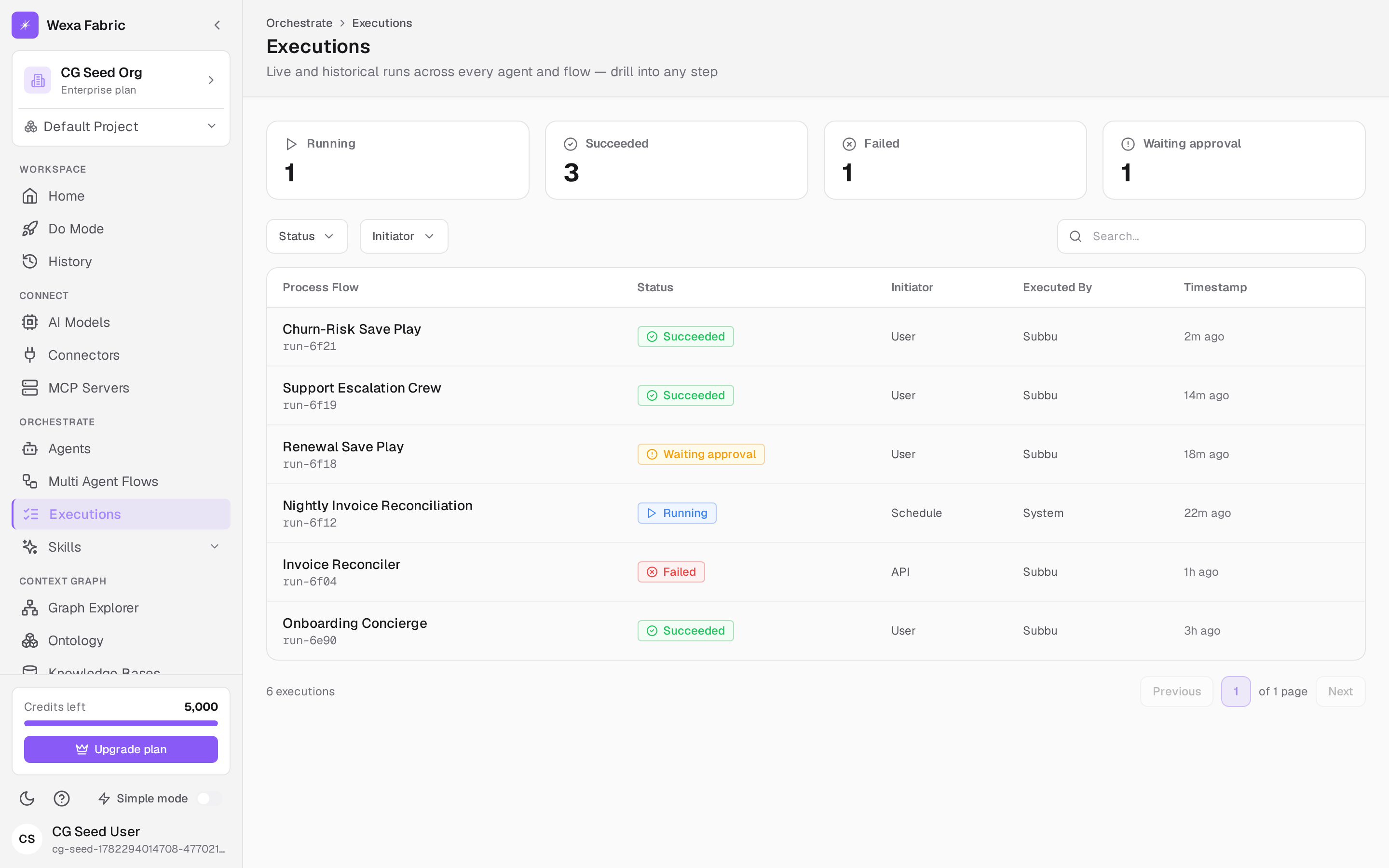
Section titled “Review past runs”Orchestrate → Executions lists every run with its status, so you can reopen any execution and inspect what happened end to end.
Next steps
Section titled “Next steps”- Approval gates · Simulation — gate and test before you run live.
- Governance & audit — trace and audit any run.