
Connect Claude
There are two ways to connect Claude, depending on which app you use:
- Claude.ai — add Fabric as a custom connector. No install; OAuth discovery happens automatically.
- Claude Desktop — register Fabric in your local config file with an API key.
First, get your MCP credentials: your MCP Server URL,
workspace ID (ws_<your_project>), and an API key (fab_sk_…).
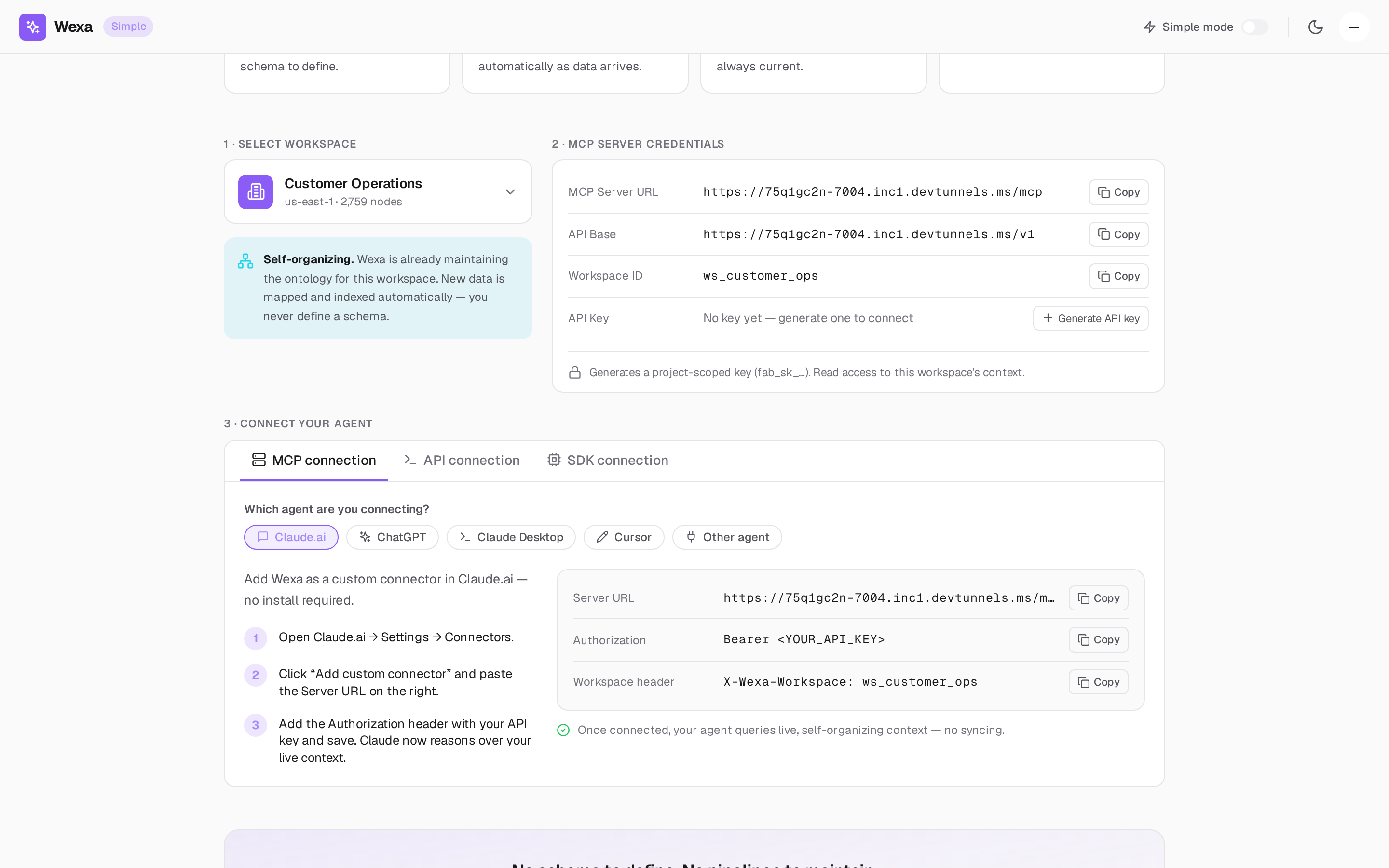
Add Wexa as a custom connector in Claude.ai — no install required.
- Open Claude.ai → Settings → Connectors.
- Click Add custom connector and paste the Server URL from your console.
- Add the Authorization header with your API key and save.
Claude now reasons over your live context. For Claude.ai you can also use OAuth 2.1 — when prompted, the discovery and consent flow runs automatically and pins the token to your organization → department → project. See Authentication & scopes.
Register Wexa in your Claude Desktop config file.
- Open Settings → Developer → Edit config (
claude_desktop_config.json). - Paste the block below and drop in your API key and workspace ID.
- Restart Claude Desktop — Wexa appears as an available connector.
{ "mcpServers": { "wexa-context": { "url": "https://mcp.wexa.ai/v1/sse", "headers": { "Authorization": "Bearer <YOUR_API_KEY>", "X-Wexa-Workspace": "ws_<your_project>" } } }}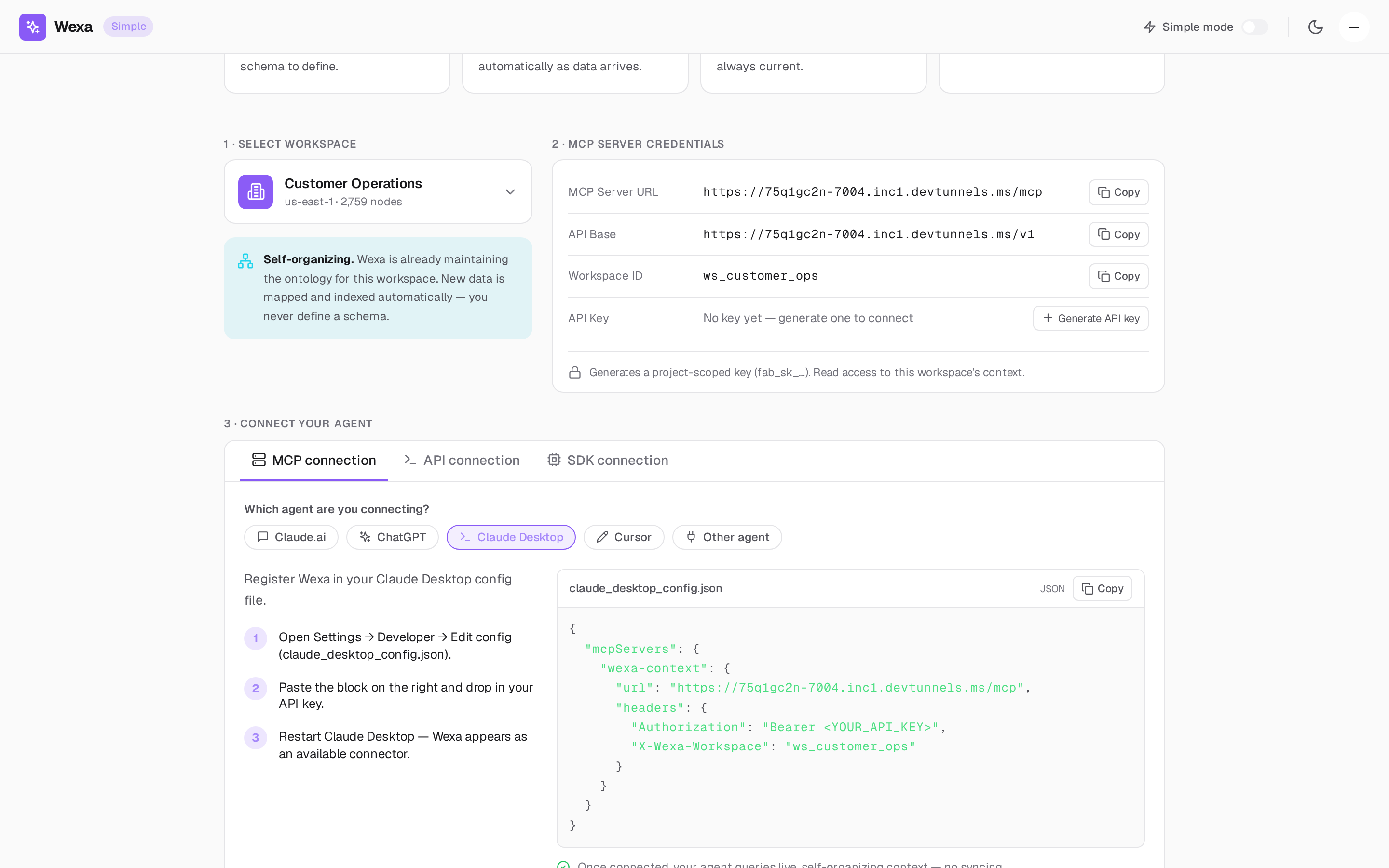
Verify the connection
Section titled “Verify the connection”Ask Claude a question that depends on your data, for example
“What are the top accounts at churn risk?” Claude calls Fabric’s query-context tool and
answers from your context graph. Every call is scope-pinned and audited.
Troubleshooting
Section titled “Troubleshooting”- Claude doesn’t see the tools — confirm you restarted the app (Desktop) or saved the connector (Claude.ai), and that the Server URL is exact.
- 401 / unauthorized — the API key is wrong, revoked, or missing the
Bearerprefix. Regenerate in Simple Mode. - 403 / wrong scope — the workspace header doesn’t match a project your key can access.
Check the
X-Wexa-Workspacevalue.
Next steps
Section titled “Next steps”- The Fabric MCP tools — what Claude can call.
- Simple vs Advanced mode — read vs write.