
Get your connection details
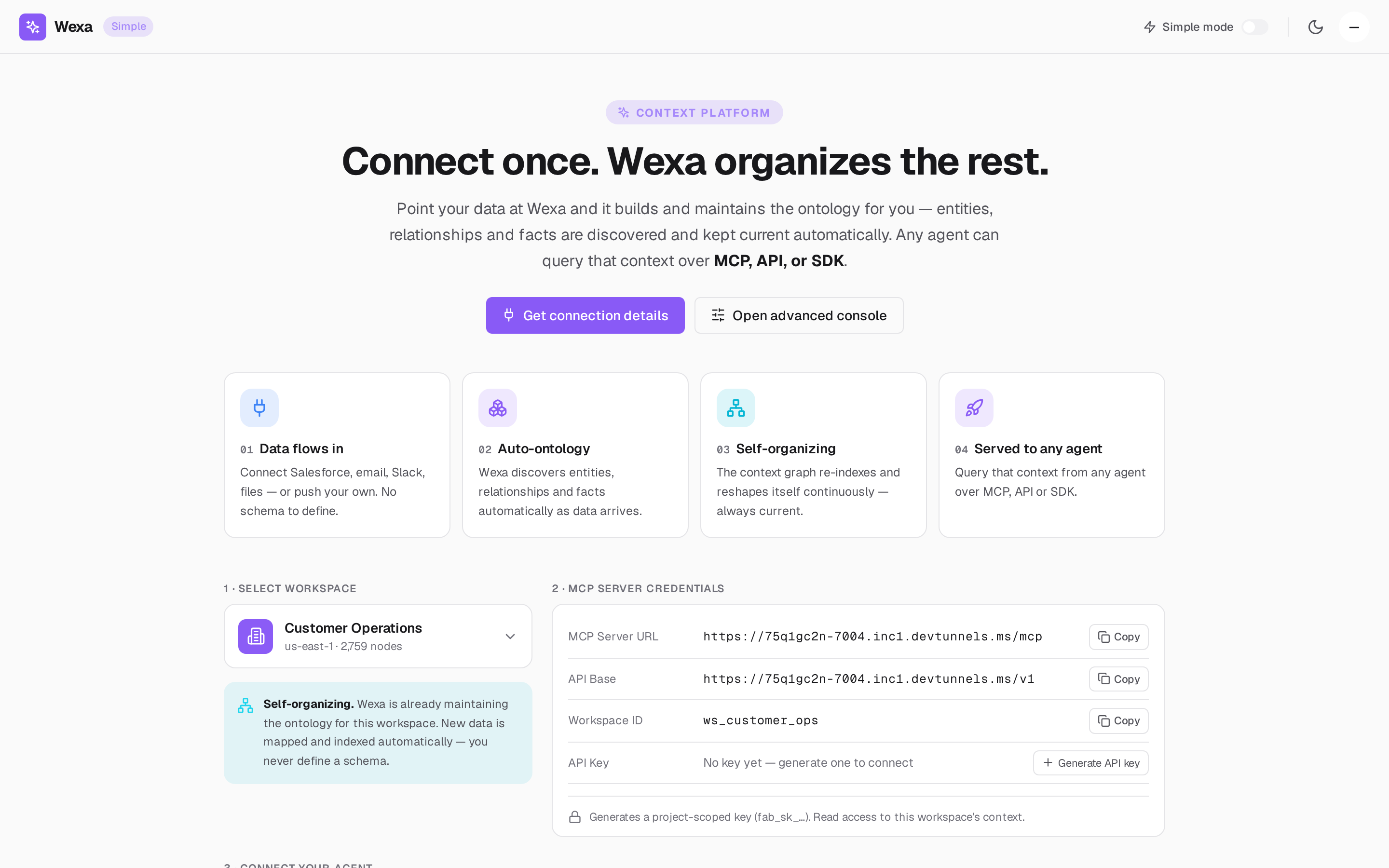
Everything you need to connect an agent comes from one place: the MCP server credentials card in Simple Mode. This page explains each value and where it comes from.
The connection coordinates
Section titled “The connection coordinates”The console reads these from the gateway endpoint GET /v1/connection-info (public, no
secrets) and renders the values for your deployment. Always use the values shown in
your console — the examples below are illustrative.
| Field | What it is | Example |
|---|---|---|
| MCP Server URL | The remote MCP endpoint your agent connects to | https://mcp.wexa.ai/v1/sse |
| API Base | The REST base URL for direct HTTP calls | https://api.wexa.ai/v1 |
| Workspace ID | The scope your credentials are pinned to (a project) | ws_<your_project> |
| Workspace header | The HTTP header that carries the workspace ID | X-Wexa-Workspace |
Select your workspace
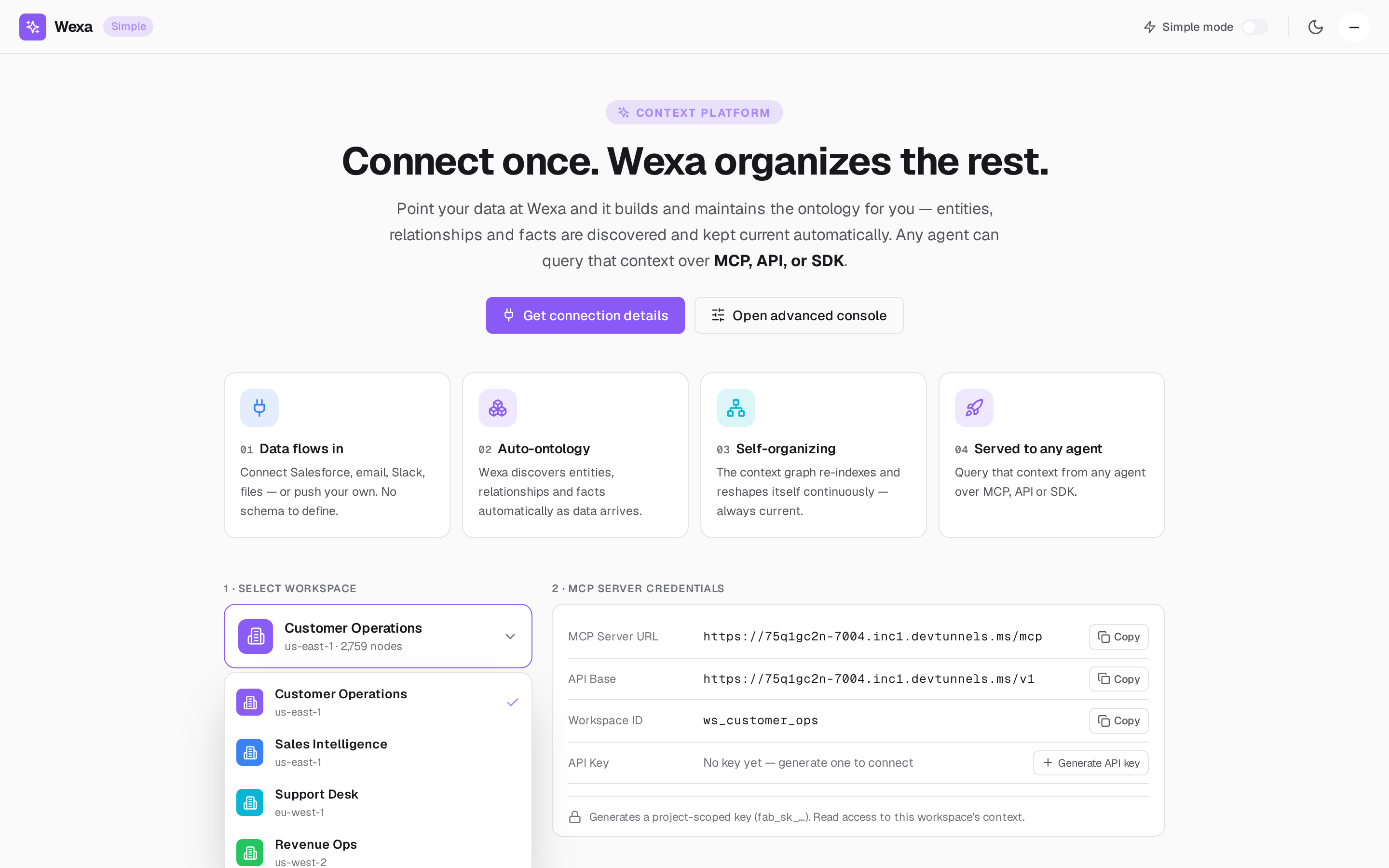
Section titled “Select your workspace”The workspace selector lists every project you can access. Selecting one re-keys all
credentials and snippets to that workspace’s ID (ws_<slug>). The workspace ID is the
scope the gateway pins your key to — your agent can only read context from that project.
Generate an API key
Section titled “Generate an API key”In the credentials card, click Generate API key. Fabric issues a project-scoped
key of the form fab_sk_…, granting read access to the selected workspace’s context.
API keys are stored only as SHA-256 hashes at rest, are project-scoped, and are revocable. For the alternative — OAuth 2.1 for interactive agents — see Authentication & scopes.
What to do with these values
Section titled “What to do with these values”- MCP client → put the MCP Server URL,
Authorization: Bearer <key>, and the workspace header into your client config. See Get MCP credentials. - REST → send them as headers on each request. See Use the REST API.
- SDK → pass the API key and workspace to the client constructor. See SDKs.